
If you wake up easily on the first ring, the iPhone Clock app alarm is enough: it's free, it always goes off, and since iOS 26 it's harder to turn off by accident. But if you hit snooze three or four times, or switch it off half asleep and go back to the pillow, a mission alarm app will serve you better, because it won't turn off until you do something that requires being awake.
In this comparison we put the built-in iPhone alarm and a mission alarm app like LevoUp side by side: how each one turns off, what happens with snooze, which is more reliable, what they cost and when each one makes sense.
Quick answer: iPhone alarm or alarm app?
| If this sounds like you… | Go with |
|---|---|
| You wake up on the first alarm and get up | The iPhone Clock alarm |
| You hit snooze several times every morning | An alarm app with no snooze button |
| You turn the alarm off in your sleep and don't remember | An alarm with a mental mission (for example, a math problem) |
| You wake up but crawl back into bed | An alarm with a photo mission that makes you stand up |
| You don't want to pay anything | The iPhone alarm, with “Snooze” turned off |
What matters isn't which one is louder, but how much effort it takes to turn it off. The iPhone alarm stops with a one-second gesture; a mission app asks you to solve a sum, type a sentence or take a photo, and that's what makes the difference when the problem is the snooze habit.
Comparison table: iPhone Clock vs. LevoUp
Clock features checked against information published by Apple and tech outlets about iOS 26 and iOS 27. They may vary with your iOS version.
| Clock alarm (iPhone) | LevoUp | |
|---|---|---|
| How it turns off | Swipe (since iOS 26.1), or a tap if you set it up that way | Only by completing a mission |
| Snooze button | Yes; can be turned off, 1 to 15 minutes (iOS 26) | None |
| If you ignore it | Stops ringing after a while | Keeps ringing again and again until you complete the mission |
| Missions | No | Math problem, affirmation, photo of the sky, touch grass, make your bed |
| Coming soon | — | Push-ups, squats, find an object |
| Rings in silent mode and with Focus | Yes, always | Check your iPhone settings; the app includes a volume test |
| Habit tracking | No | Streaks, badges, history and rest days |
| Integration | Health app sleep schedule and Apple Watch | In-app bedtime reminder |
| Price | Free | 3-day free trial; about US$37 a year or US$9 a week |
| Ads | No | No |
Want to stop hitting snooze starting tomorrow?
LevoUp won't turn off until you complete a mission. Try it free for 3 days.
What the iPhone alarm does well
Before installing anything, it's fair to say the Clock app is a good alarm. Its strengths:
- Reliability: it's the system alarm. It rings with the phone locked, in silent mode and with any Focus turned on.
- Free and ad-free. It comes preinstalled and needs no account or subscription.
- Adjustable snooze (iOS 26): after years of a fixed 9 minutes, you can now pick 1 to 15 minutes in “Snooze Duration,” or turn “Snooze” off for each alarm.
- Slide to stop (iOS 26.1): turning it off now takes a swipe instead of a tap on a button, which cuts down on accidental dismissals.
- Separate alarm volume (iOS 27): in Settings > Sounds & Haptics you can split the alarm and timer volume from the ringtone volume, so the alarm stays loud even if your ringer is low.
- Health and Apple Watch integration: the Health app's sleep schedule creates a wake-up alarm, and the watch can wake you with a vibration on your wrist.
Where the iPhone alarm falls short
The built-in alarm's limit isn't technical, it's by design: it's made to alert you, not to make sure you get up. That's why it fails exactly where most people go looking for an alternative:
- It turns off with a gesture. A swipe beats a tap, but you can still do it with your eyes closed. When you wake up you go through sleep inertia: for a few minutes you think more slowly and your self-control isn't fully online yet. An automatic gesture is easy to do in that state.
- Snooze is still within reach. You can turn it off, but you can also turn it back on the night you're tired. And picking a 15-minute snooze doesn't make you more rested: that broken sleep usually isn't restorative.
- Nothing makes you stand up. You turn it off and stay in bed. Many people end up setting five alarms in a row to compensate, which teaches the brain to ignore the first ones.
- It doesn't track progress. You don't know how many mornings you got up on the first ring, and there's no streak to keep you going.
If any of this sounds familiar, the problem isn't the volume or the tone: it's that turning it off costs too little. We go deeper in is hitting snooze bad?
What a mission alarm app like LevoUp adds
A mission alarm app changes the main rule: the alarm won't turn off until you complete a task. In LevoUp you pick that task when you create the alarm, with a clear head, and in the morning you just have to do it:
- Math problem: you solve random equations; ideal if you switch the alarm off without noticing.
- Affirmation: you type a positive sentence, which forces you to focus.
- Photo of the sky: you open a window or step outside and photograph the sky; you also get natural light.
- Touch grass: you go outside and photograph grass or soil.
- Make your bed: you make it and take a photo. No way back under the covers.
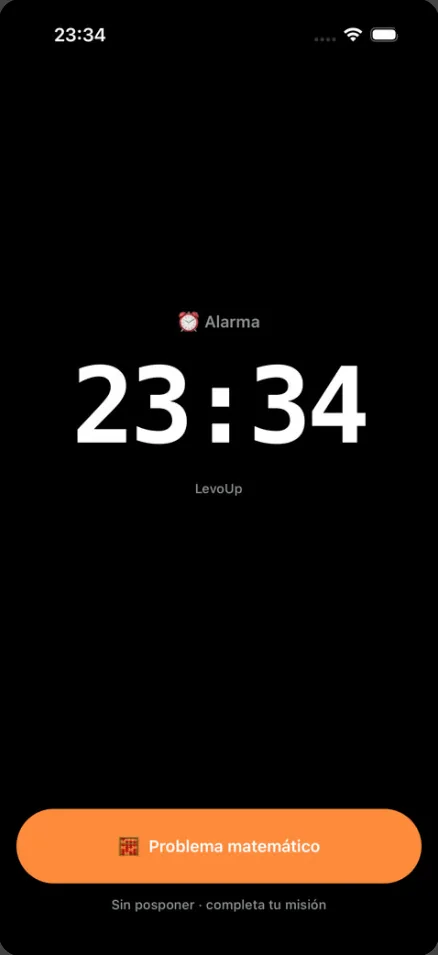
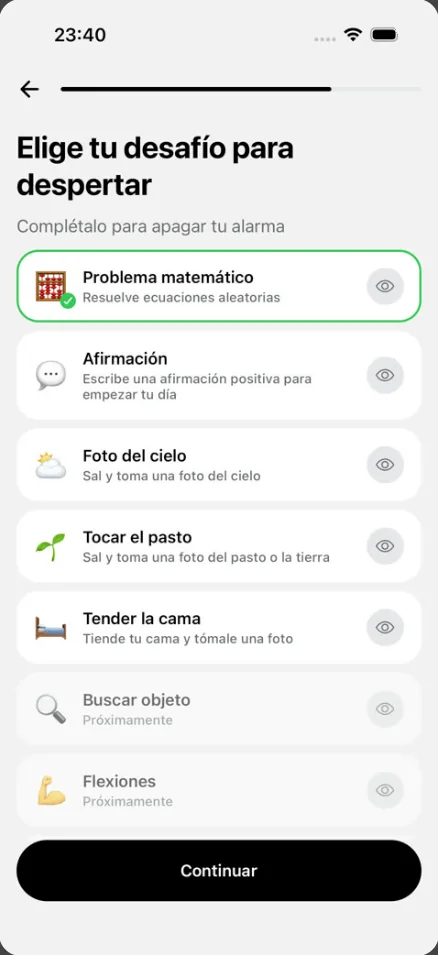
Photo missions need no setup and are verified on your phone: photos aren't saved or uploaded. Push-ups, squats and find an object are coming soon.
Beyond the mission, LevoUp adds things the Clock app doesn't have: streaks and badges for every morning you nail, a history of your wake-ups, rest days that don't break your streak, and “My reason,” where you save why you want to get up. If you want to understand this type of alarm in general, we explain it in alarm that won't turn off until you get up.
Reliability: does an app ring like the iPhone alarm?
It's the most reasonable question, and here the built-in alarm has the edge: as the system alarm, it always rings. Third-party apps depend on permissions and your settings. With iOS 26 Apple introduced AlarmKit, a framework that lets third-party apps ring like system alarms, but each app adopts it at its own pace, so the smart move is to check for yourself.
Before trusting any alarm app, check this on your iPhone:
- Volume: in Settings > Sounds & Haptics, raise the “Ringtone and Alerts” volume (and, on iOS 27, the alarm volume if you split it).
- Focus modes: add your alarm app to the allowed apps in “Do Not Disturb” and “Sleep.”
- Notifications: allow the app's notifications and keep it out of the Scheduled Summary.
- Battery: charge your phone every night. With a dead battery nothing rings, not even Clock.
- Real test: set an alarm for one minute from now, lock the phone and listen.
LevoUp has that test built in: in Settings, the Volume test creates an alarm that rings after 20 seconds with your phone locked, so you hear exactly how it will sound in the morning. If it seems quiet, the app shows you which iPhone settings to check.
Price: free vs. subscription
The iPhone alarm costs nothing, and for many people that settles it. Fair enough: if it works for you, there's no reason to pay.
LevoUp has no free version and no ads. You can try it free for 3 days on the yearly plan (about US$37 a year), and there's also a weekly plan (about US$9 a week). The exact price in your currency shows in the App Store or Google Play before you confirm, and if you cancel during the trial you aren't charged.
The useful question isn't “why pay when Clock is free?” but what your snooze mornings cost you: being late, skipping breakfast or missing your workout. If that happens often, a three-day trial is enough to see whether a mission alarm changes the habit.
How to get more out of the iPhone alarm (if you stick with it)
If you'd rather keep using Clock, these tweaks bring it closer to an alarm that gets you up:
- Turn off “Snooze” on every alarm. Without it, your only options are stopping it or getting up.
- Keep slide to stop. If you switched back to the one-tap button with “Prefer Single-Touch Actions” in Accessibility, turn that off again.
- One alarm, at your real time. Backup alarms teach your brain the first one doesn't count.
- Keep your iPhone away from the bed. Having to get up to turn it off works like a homemade mission.
- Go to bed on time. No alarm makes up for too little sleep.
To work out when to go to bed so you wake up at the end of a sleep cycle, use the calculator:
What time should you go to bed?Find out when to go to bed or wake up based on your 90-minute sleep cycles. Open calculatorAnd if you sleep enough and still find it really hard to wake up, or you're very sleepy during the day, talk to a doctor: there may be a sleep disorder behind it.
Verdict: which should you choose?
- Stick with the iPhone alarm if you get up on the first alarm, don't snooze and don't want to pay. Turn off “Snooze” and you're set.
- Try a mission alarm app if you snooze every day, turn the alarm off in your sleep or go back to bed after turning it off. In those cases, Clock alone won't change the habit.
If you go for an app, our guide to the best alarm app for iPhone compares the options by type, and LevoUp vs. Alarmy puts the two mission apps head to head. And if you want a plan to quit snoozing, follow the steps in how to stop hitting snooze.
Frequently asked questions
Is the iPhone alarm or an alarm app better?
It depends on your problem. If you wake up on the first alarm, the Clock alarm is free and reliable. If you snooze or turn it off in your sleep, a mission alarm app works better, because it only turns off when you do something that requires being awake.
How do I remove the snooze button on iPhone?
Open the Clock app, tap the alarm and turn off “Snooze.” Since iOS 26 you can also change the snooze duration to anywhere from 1 to 15 minutes instead of the fixed 9.
Does the iPhone alarm ring in silent mode?
Yes. The Clock alarm always rings, even with your iPhone on silent or a Focus turned on. Third-party apps depend on their permissions and your settings, so test them with the phone locked.
Can I add a mission to the iPhone alarm?
No. The Clock app has no missions: you turn it off with a swipe. For an alarm that only stops when you solve a sum, type a sentence or take a photo, you need a mission alarm app like LevoUp.
Is LevoUp free?
It has no free version and no ads, but you can try it free for 3 days on the yearly plan. If you cancel before the trial ends, you aren't charged.
What happens if I ignore the LevoUp alarm?
It keeps ringing again and again until you complete your mission. There's no snooze or stop button.